顯示具有 筆記 標籤的文章。 顯示所有文章

2017年10月17日 星期二


2016年9月16日 星期五

心得』eclipse working set

當開啟的專案很多又在同一個 workspace 時,


eclipse 提供一個內建的分類方式:Working Set


新增一個 Working Set:


點選在 Package Explorer 的小倒三角形 -> Select Working Set


(Deselect Working Set 不選取任何 Working Set)
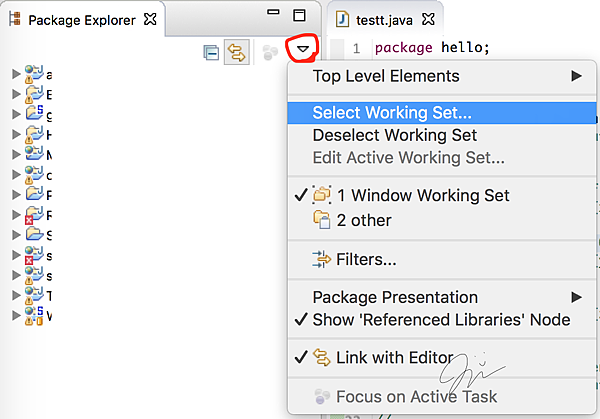


會跳出視窗,選取 New...


(沒有設定過的話,大框裡不會有可以選擇的選項)


(一次可以選取一個或一個以上的Working Set)
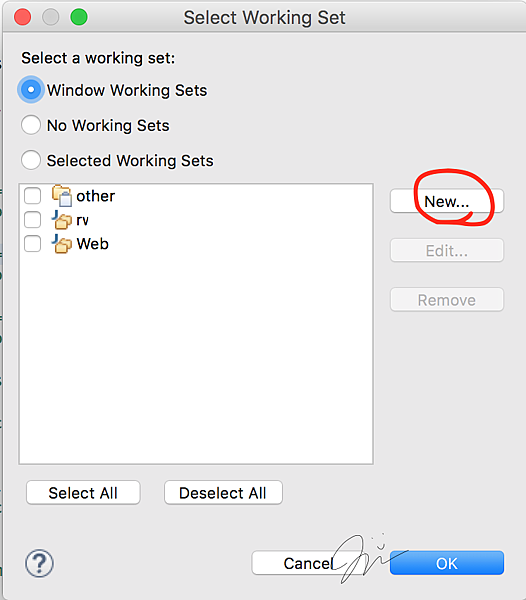


跳出視窗後,選擇類型
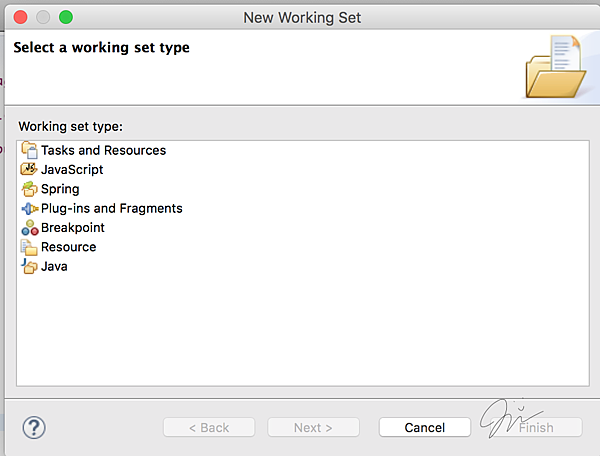


命名要創立的 Working Set -> 選擇要放進去的專案 -> Finish
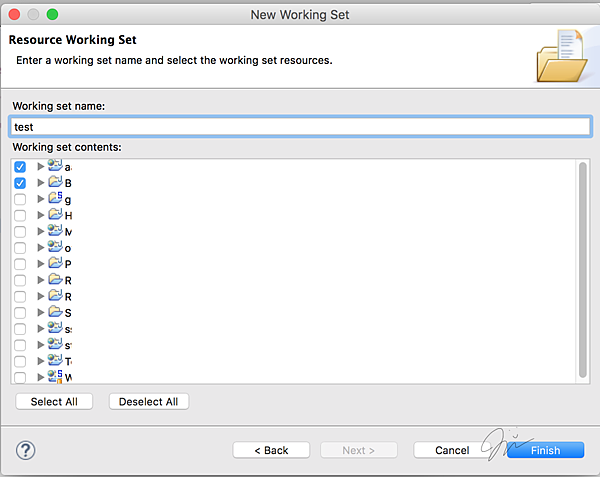


創立完成!


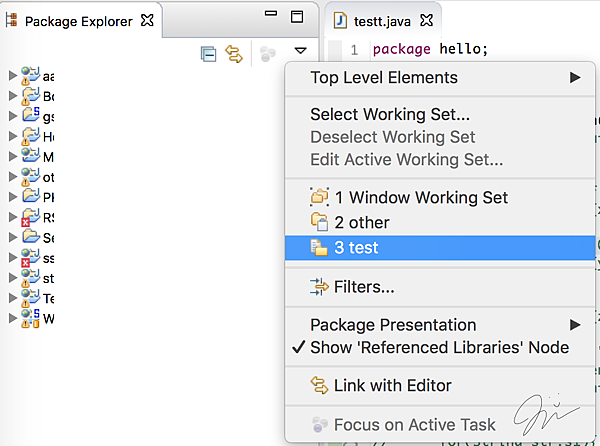
選擇 Working Set 的方法有兩種:


1.進入剛剛的 Select Working Set 選取


2.在小倒三角形裡直接選取 Working Set


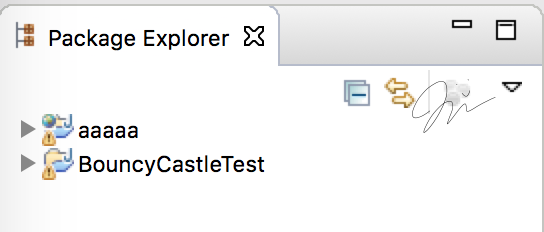
完成設定及選取成功後,會看到 Package Explorer 裡只有你設定後要顯示的專案


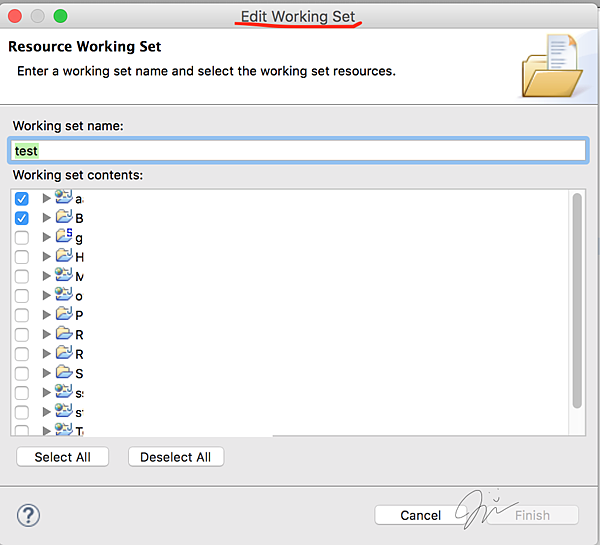
要編輯 Working Set 必須先選取(上一個步驟),才能在小倒三角形直接編輯(Edit Active Working Set)


或是在 Select Working Set 裡執行編輯


編輯時跳出的視窗:


2016年9月9日 星期五

筆記』eclipse 專案所在位置+workspace 觀看查詢及修改

eclipse 開啟時會給用的人選擇要用哪個 workspace 


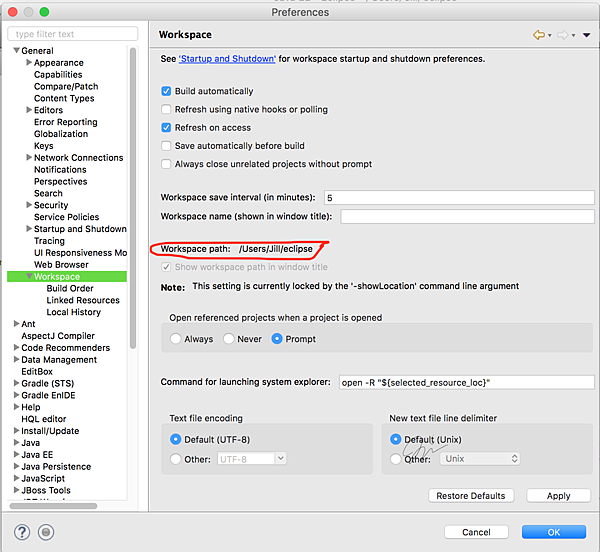
選擇不要再問,某天要知道workspace 的方法如下:


1.Preferences-> General -> Workspace


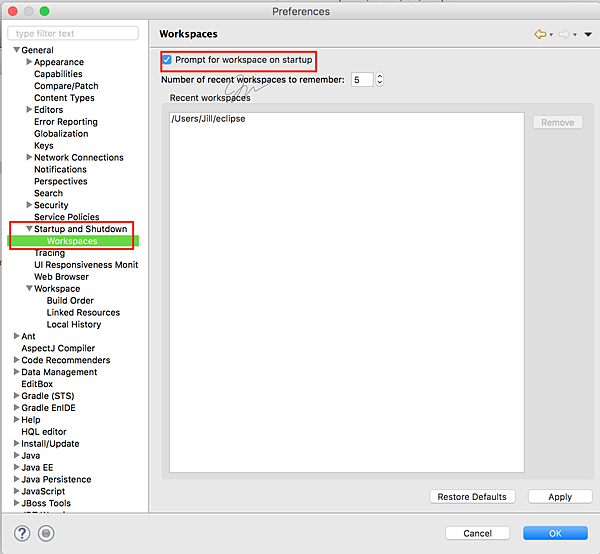
選擇不要再問,某天要換 workspace 的方法不只一種,這裡介紹的是設定下次開始的時候再次詢問:


1.Preferences-> General -> Startup and Shutdown -> Workspaces


將 Prompt for workspace on startup 打勾,打勾是要問


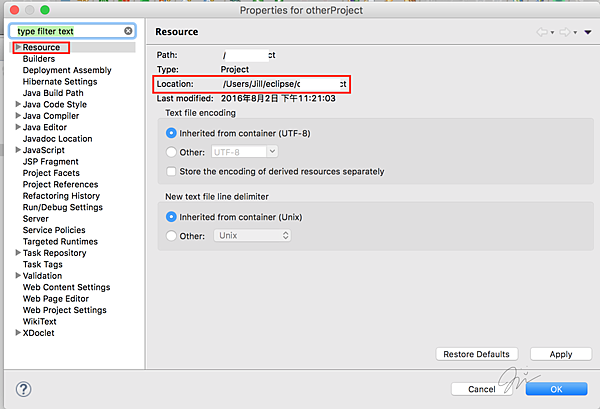
要看現在 project 的所在位置:


1. 專案右鍵 -> Properties -> Resource


2016年6月26日 星期日

筆記』nw.js 快速開始~執行+打包

環境:windows下快速開始


1.執行:如果是用資料夾裝起來的話,直接拖曳整個資料夾到nw.exe,放開後就會以nw.exe開啟。


或是開始nw.exe之後,拖曳html檔案到nw.exe開啟,也可以執行。


2.打包成.exe後執行,方法如下


1. 先至官網 http://nwjs.io/  下載


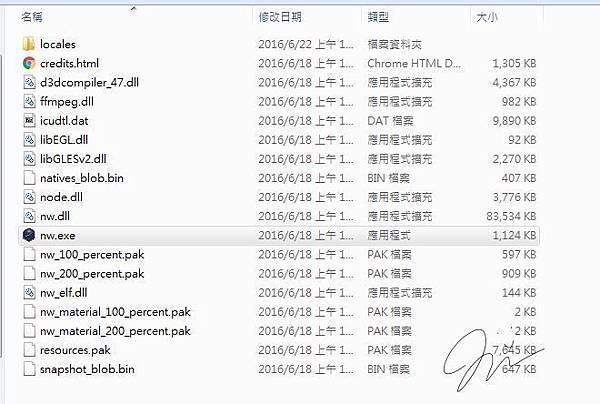
下載下來解壓縮後會是這樣:


2. 按照官方github( https://github.com/nwjs/nw.js )裡的快速開始


・創一個 index.html 跟 package.json



・檔案要寫的內容可以直接複製貼上
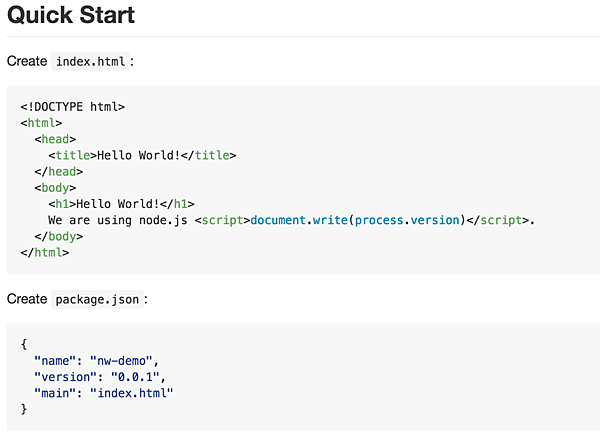


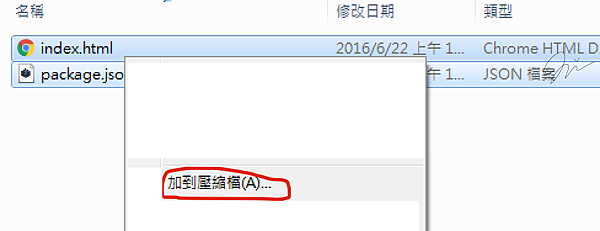
3. 把檔案選起來壓縮(package.json要在根目錄)


(創一個資料夾放的話,也要進到資料夾裡選起來壓縮!)


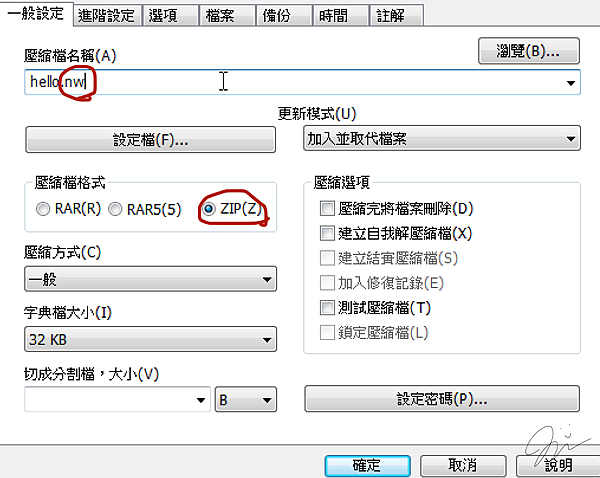
4. 壓縮格式要選ZIP,選RAR後面會失敗


將副檔名改為nw


5. 將剛才的.nw檔放在剛剛官網下載下來,解壓縮過後的資料夾裡
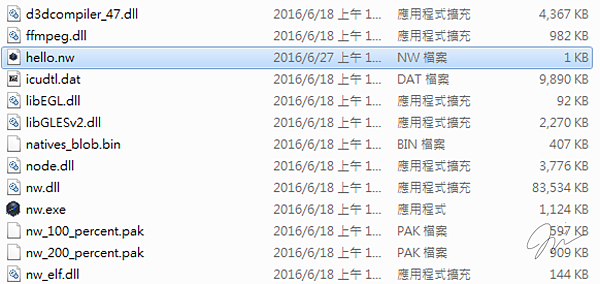


6. 開啟命令提示字元 -> 到達 nwjs 資料夾底下 -> 確認你的.nw 檔要跟 nw.exe 同層  -> 輸入 copy /b nw.exe+***.nw **.exe



7. 執行成功會就會多出一個執行擋
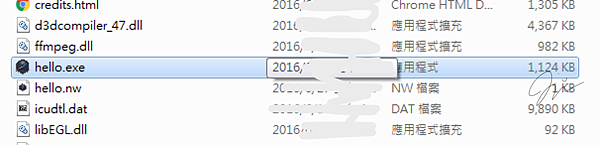


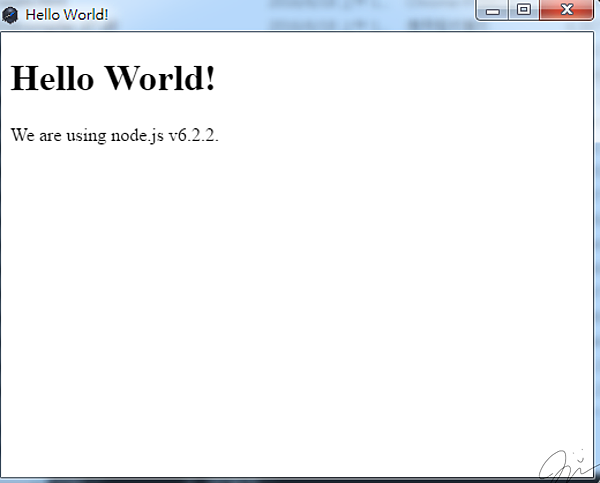
8. 點兩下就可以直接執行了:D!!


2016年3月14日 星期一

筆記 』在部落格放程式碼

想要在部落格裡放入程式碼


但是不想用一般(字有可能因為換行跑掉)的貼上


範例呈現方式:


實現方法:


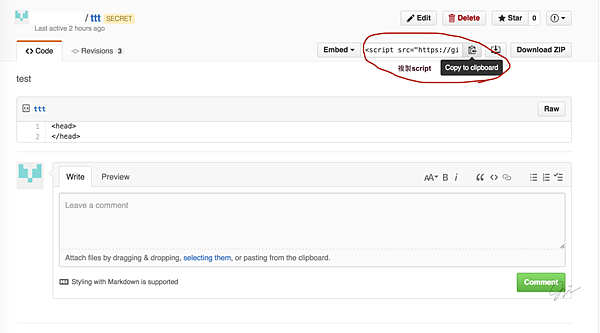
先到  https://gist.github.com


複製script


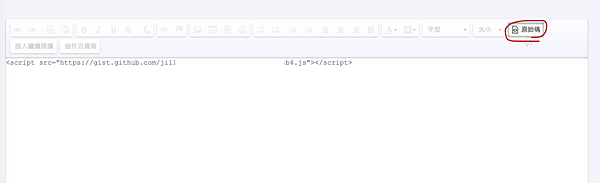
在部落格打文章這裡:


按下原始碼,貼上剛剛複製來的


再按一下原始碼回到原本發表文章模式,會什麼都沒有看到,沒看到東西是正常的
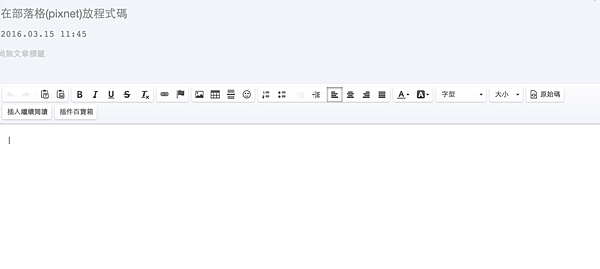


寫好文章,發表在部落格上就會出現了


2016年3月9日 星期三

筆記 』OCA Java SE 8 考試範圍

Oracle Certified Associate, Java SE 8 Programmer


考試號碼:1Z0-808


考試網站:


https://education.oracle.com/pls/web_prod-plq-dad/db_pages.getpage?page_id=5001&get_params=p_exam_id:1Z0-808


TOPICS


Java Basics 


  • Define the scope of variables 

  • Define the structure of a Java class

  • Create executable Java applications with a main method; run a Java program from the command line; including console output.

  • Import other Java packages to make them accessible in your code

  • Compare and contrast the features and components of Java such as: platform independence, object orientation, encapsulation, etc.


Working With Java Data Types 


  • Declare and initialize variables (including casting of primitive data types)

  • Differentiate between object reference variables and primitive variables

  • Know how to read or write to object fields

  • Explain an Object's Lifecycle (creation, "dereference by reassignment" and garbage collection)

  • Develop code that uses wrapper classes such as Boolean, Double, and Integer.  


Using Operators and Decision Constructs 


  • Use Java operators; including parentheses to override operator precedence

  • Test equality between Strings and other objects using == and equals ()

  • Create if and if/else and ternary constructs 

  • Use a switch statement 


Creating and Using Arrays 


  • Declare, instantiate, initialize and use a one-dimensional array

  • Declare, instantiate, initialize and use multi-dimensional array


Using Loop Constructs 


  • Create and use while loops

  • Create and use for loops including the enhanced for loop

  • Create and use do/while loops

  • Compare loop constructs

  • Use break and continue  


Working with Methods and Encapsulation 


  • Create methods with arguments and return values; including overloaded methods

  • Apply the static keyword  to methods and fields  

  • Create and overload constructors; including impact on default constructors

  • Apply access modifiers

  • Apply encapsulation principles to a class

  • Determine the effect upon object references and primitive values when they are passed  into methods that change the values


Working with Inheritance 


  • Describe inheritance and its benefits

  • Develop code that demonstrates the use of polymorphism; including overriding and object type versus reference type

  • Determine when casting is necessary

  • Use super and this to access objects and constructors

  • Use abstract classes and interfaces


Handling Exceptions 


  • Differentiate among checked exceptions, unchecked exceptions, and Errors

  • Create a try-catch block and determine how exceptions alter normal program flow

  • Describe the advantages of Exception handling 

  • Create and invoke a method that throws an exception

  • "Recognize common exception classes (such as NullPointerException, ArithmeticExcpetion, ArrayIndexOutOfBoundsException, ClassCastException)"


Working with Selected classes from the Java API (8新加的)


  • Manipulate data using the StringBuilder class and its methods

  • Creating and manipulating Strings

  • Create and manipulate calendar data using classes from java.time.LocalDateTime,  java.time.LocalDate, java.time.LocalTime, java.time.format.DateTimeFormatter, java.time.Period 

  • Declare and use an ArrayList of a given type 

  • Write a simple Lambda expression that consumes a Lambda Predicate expression


2016年2月25日 星期四

筆記 』Mac 檔案加密

電腦裡面要讓檔案開啟之前先輸入密碼的方法有兩種


1.創一個有密碼映像檔


2.在文件輸出的時候加密碼


方法1


開啟 磁碟工具程式 ->點選 新增映像檔
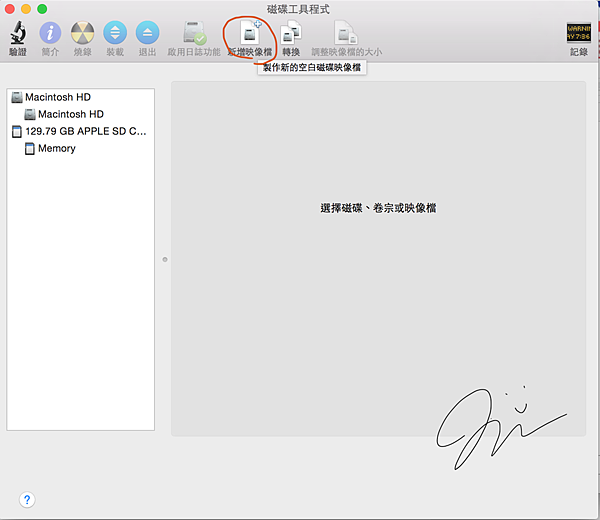


跳出下面的框之後,記得要選加密保護
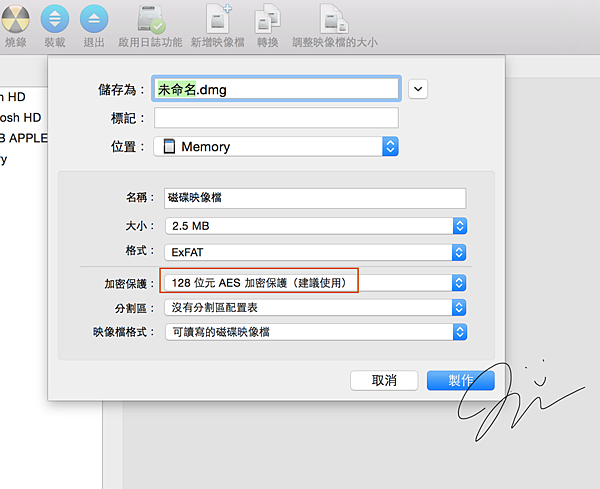


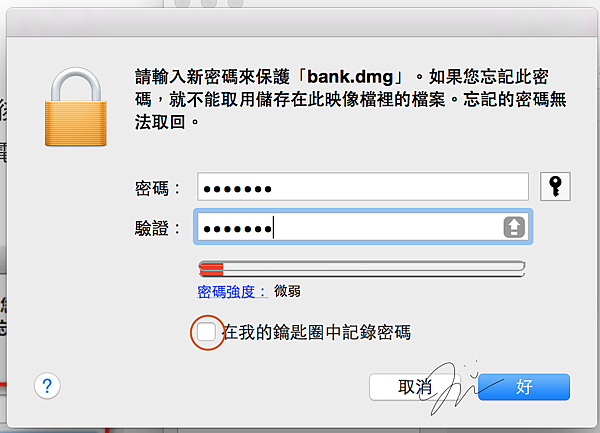
輸入密碼的時,不要將紀錄密碼打勾,否則在你的電腦裡會記住密碼,將可以直接開啟你的檔案


如果儲存的話,可以在 鑰匙圈存取 刪除已記住的密碼


方法2


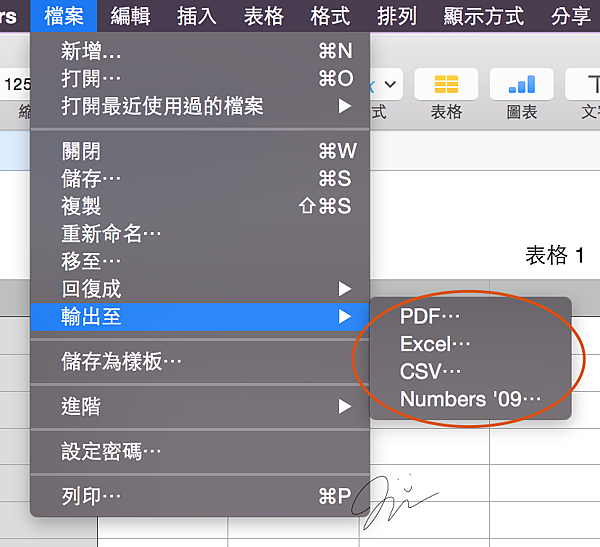
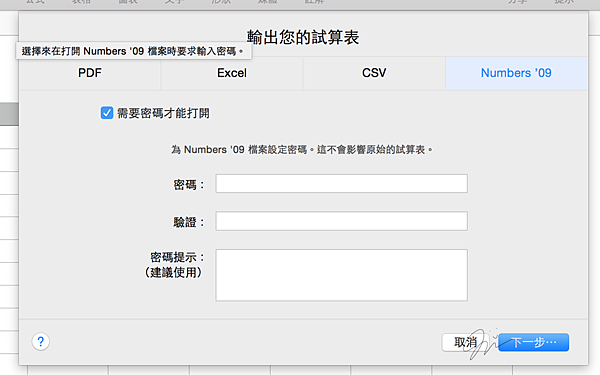
假如是文字、表格或簡報檔,Pages、Number跟Keynote輸出檔案時就可以加密了


要將 需要密碼才能開啟 打勾


2016年1月21日 星期四

筆記 』Eclipse、MyEclipse 修改字體大小

Eclipse、MyEclipse 預設的字體大小只有10,


對我來說字太小,而且中文更是擠在一起


修改字體大小方法:


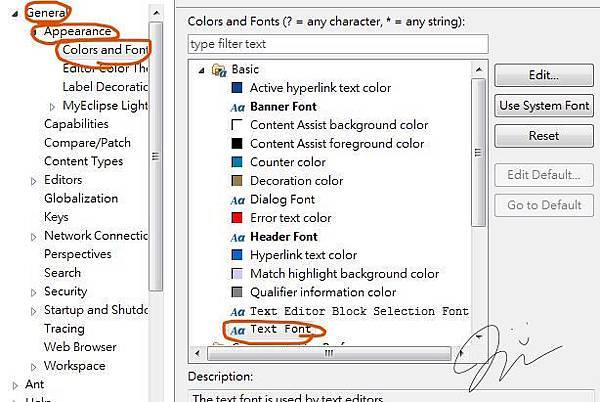
(Windows)Windows -> Preferences


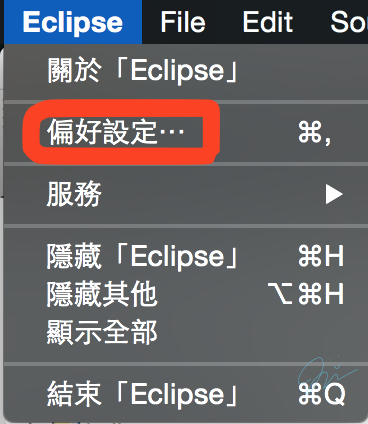
(Mac)Eclipse -> 偏好設定...


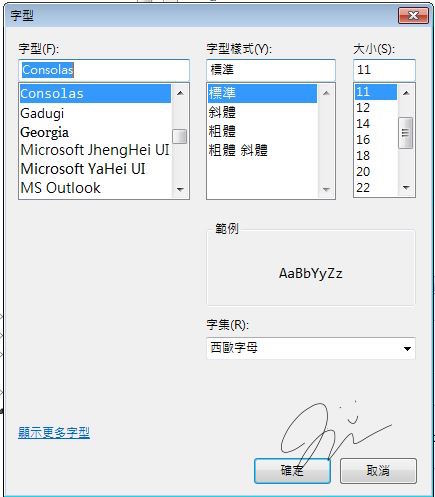
General -> Appearance -> Colors and Font -> Text Font


字體_1


選 Edit... 會跳出下面的視窗


字體_2  


選好按下確定就確定修改了~


PS.這裏的修改是整個字體大小都會改


2015年12月29日 星期二

筆記 』部落格可以線上聊天囉!!

部落格聊天教學:


進入網誌後,右下角會有一個跑馬燈


螢幕快照 2015-12-30 15.34.36


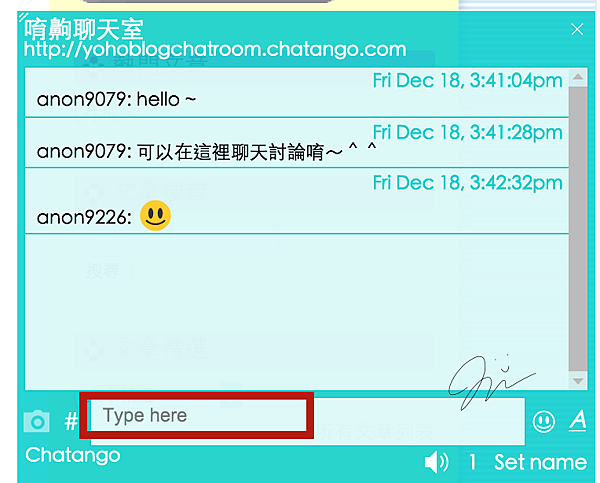
點開來,

在 “ Type here ” 的地方打字,直接按Enter就會送出囉~
螢幕快照 2015-12-30 15.29.37

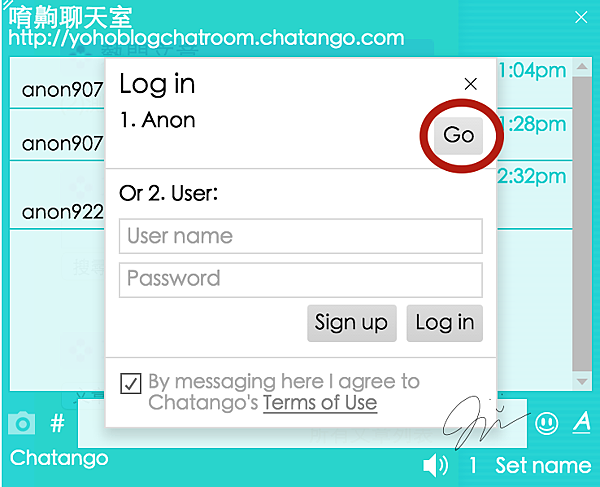
如果是第一次聊天,則會跳出設定聊天名字的設定

1.Anon   --匿名大家名字開頭都一樣,但是編號會不同,所以還是會知道哪個是自己唷~

按Go就會發送出去了

Or

2.User 登入
螢幕快照 2015-12-30 15.29.59
在線上的人就可以一起聊天了